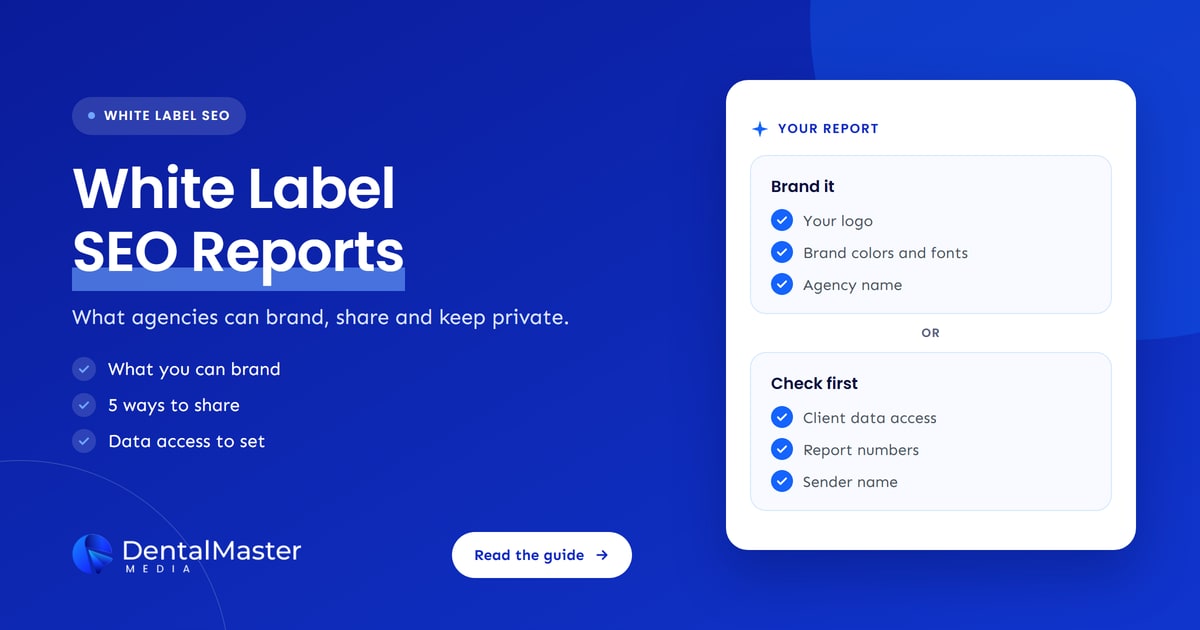
Quick answer: Yes, you can put your brand on white label SEO reports. In Looker Studio you can add your logo, set your brand colors and fonts in a custom theme, and share the report by invitation, link or a scheduled PDF email. Keep the client’s Google Search Console and Google Analytics 4 data under the client’s own accounts.
Key takeaways
- White label SEO reports are reports that your agency sends under its own name, built from the client’s own Google data.
- In Looker Studio, a custom theme sets your brand colors and fonts, and an image (PNG, JPG or SVG) carries your logo.
- A report can be shared 5 ways: invitation, link sharing, scheduled email PDF, PDF download and embed.
- A scheduled email goes to up to 50 addresses and, without Looker Studio Pro, runs at most once a day.
- Give your provider a viewer role or Search Console full user role, and keep ownership of the client’s accounts with the client.
- A branded report only helps if its numbers are right, so read every white label SEO report before it reaches the client.
What are white label SEO reports?
White label SEO reports are SEO performance reports that carry your agency’s brand instead of the name of the tool or provider that produced the numbers. The client reads your logo, your colors and your wording, and the report is built from the client’s own Google Search Console and Google Analytics 4 data.
A white label SEO report answers the questions a client asks every month: how many people found the website, which pages they visited and what work was done. The report is the part of white label SEO that the client sees most often, so it shapes how the client judges your agency.
Agencies already build most reports on Google’s own free tools. Sitechecker’s 2026 SEO agency growth report, published March 11, 2026, found that 93.2% of the 73 agencies surveyed use Google Search Console, 83.6% use Google Analytics 4 and 67.1% use Looker Studio. We cover the full arrangement in our guide to white label SEO for agencies, and the same data sits behind our dental SEO services.
Who builds white label SEO reports, the agency or the provider?
The provider usually builds the white label SEO report, and the agency owns the brand on it and the relationship with the client. Dental Master Media’s monthly report for agency partners carries your logo, so the client sees your agency’s name and never ours.
If your agency builds its own reports instead, the rest of this guide applies directly, because it uses Looker Studio features that any agency can use for free.
What can you brand on white label SEO reports?
You can brand 4 things on a white label SEO report built in Looker Studio: the colors, the fonts, the logo and the corner style of the charts. You can also reuse the finished brand for the next client. Google’s Looker Studio documentation lists each setting, and the table below shows the documented limit for each one.
| Report element | What you set | Documented limit |
|---|---|---|
| Brand colors | Text, background, link, chart palette and page navigation colors, picked by hex value | One custom theme at a time |
| Fonts | Font families for primary text, accent text, text boxes and page navigation | Applies to the whole report |
| Your logo | An image added from your hard drive or a web URL | PNG, JPG or SVG |
| Corner style | Border radius, weight, style and shadow of every chart | Radius from 0 to 20 px |
| Reusing the brand | Copy the finished report for the next client | Custom themes are not shared across reports |
The table shows that the brand lives in the report file, so a template report with your theme and logo already in place is the fastest way to onboard a new client.
Looker Studio can also extract a theme from an image: right-click a logo in the report and choose Extract theme from image, and Looker Studio proposes themes built from the colors in that logo. Add your agency name and a short footer note in text boxes, because the theme does not override the style of a text box you formatted yourself.
How can you share white label SEO reports with clients?
You can share white label SEO reports with clients in 5 ways: by invitation, by link sharing, by a scheduled email PDF, by a PDF download and by embedding the report in a website. The Google Cloud documentation describes each one, and the table below compares the 5 methods.
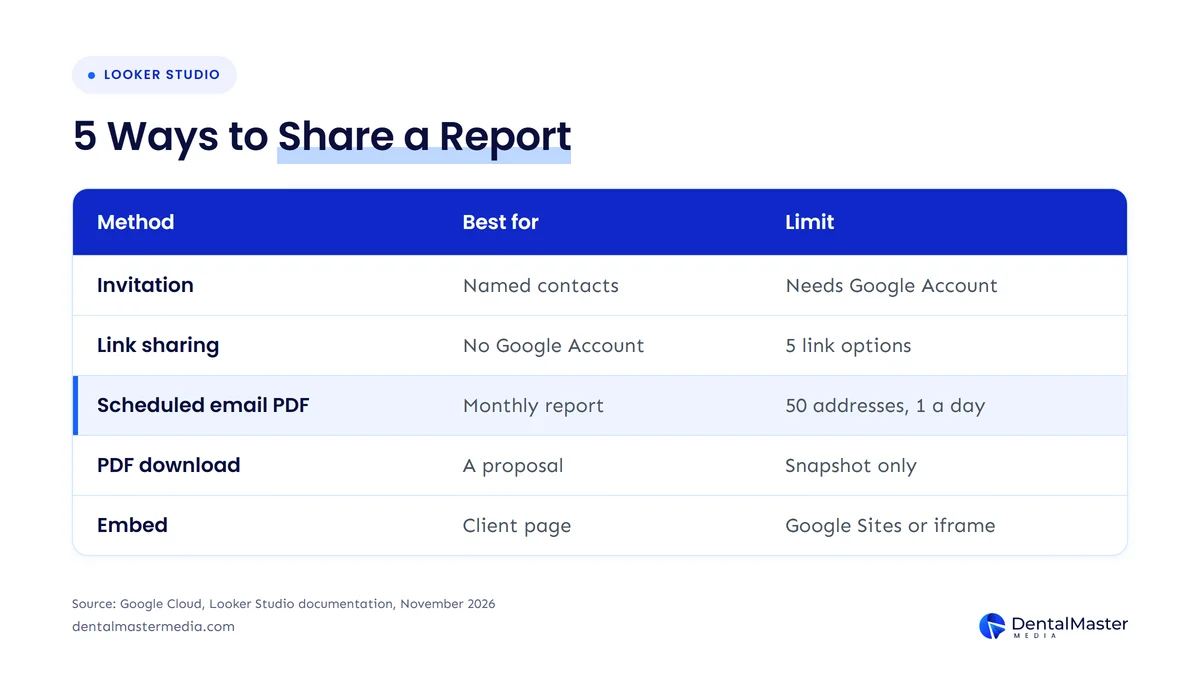
| Method | Best for | Documented limit |
|---|---|---|
| Invitation (Can view) | Named client contacts | Needs a Google Account; your organization’s administrator can block external sharing |
| Link sharing | Clients without a Google Account | 5 link options, from “Anyone with the link can view” to “Off” |
| Scheduled email PDF | The monthly report | Up to 50 addresses; once a day at most and 1 schedule per report without Looker Studio Pro |
| PDF download | A proposal or a call | A snapshot, so it does not update |
| Embed | A client page on Google Sites or any iframe-enabled website | Google Sites or any iframe-enabled website |
The table shows that the scheduled email PDF is the method built for a monthly report, while invitation and link sharing suit a client who wants to open the live report.
A scheduled email attaches the report as a PDF, includes a preview of up to 5 pages and links to the full report. Email quotas are 200 a day for an individual sender and 500 a day for Google Workspace. Google’s schedule page does not describe the sender name or any branding on the email itself, so send the first schedule to your own address before you add a client.
How do you brand and share white label SEO reports in 5 steps?
You brand and share a white label SEO report in 5 steps: build the report on the client’s data, set your theme, add your logo, choose the data credentials, share the report and schedule the monthly PDF. Each step has one outcome.
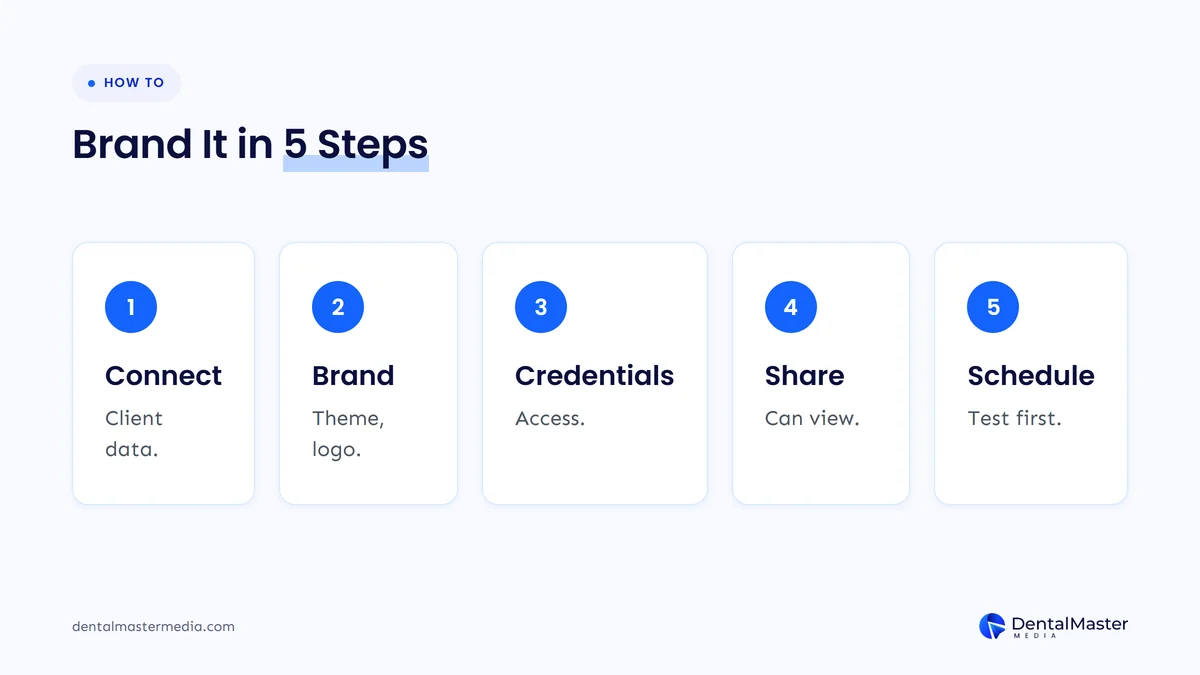
The 5 steps of the branded report setup are listed below.
- Connect the client’s data. Add Google Search Console and Google Analytics 4 as data sources, so the report shows the client’s own numbers.
- Add your brand. Open Theme and layout, click Customize, enter your brand colors by hex value and your fonts, then click the Image icon, upload a PNG, JPG or SVG logo and place it on every page with your agency name in a text box.
- Choose the data credentials. Decide whether viewers use the owner’s credentials or their own, as the next section explains.
- Share the report. Invite the client with Can view, or switch on link sharing for a client without a Google Account.
- Schedule the monthly PDF. Set the schedule, send a test to your own address and then add the client’s email.
Only a report Owner or Editor can share it, so keep the Editor role inside your agency and give clients Can view.
Which data access do white label SEO reports need?
White label SEO reports need read access to the client’s Google Search Console and Google Analytics 4 accounts, and the access choice in Looker Studio decides who can see the data inside the report. The 2 options are owner’s credentials and viewer’s credentials.
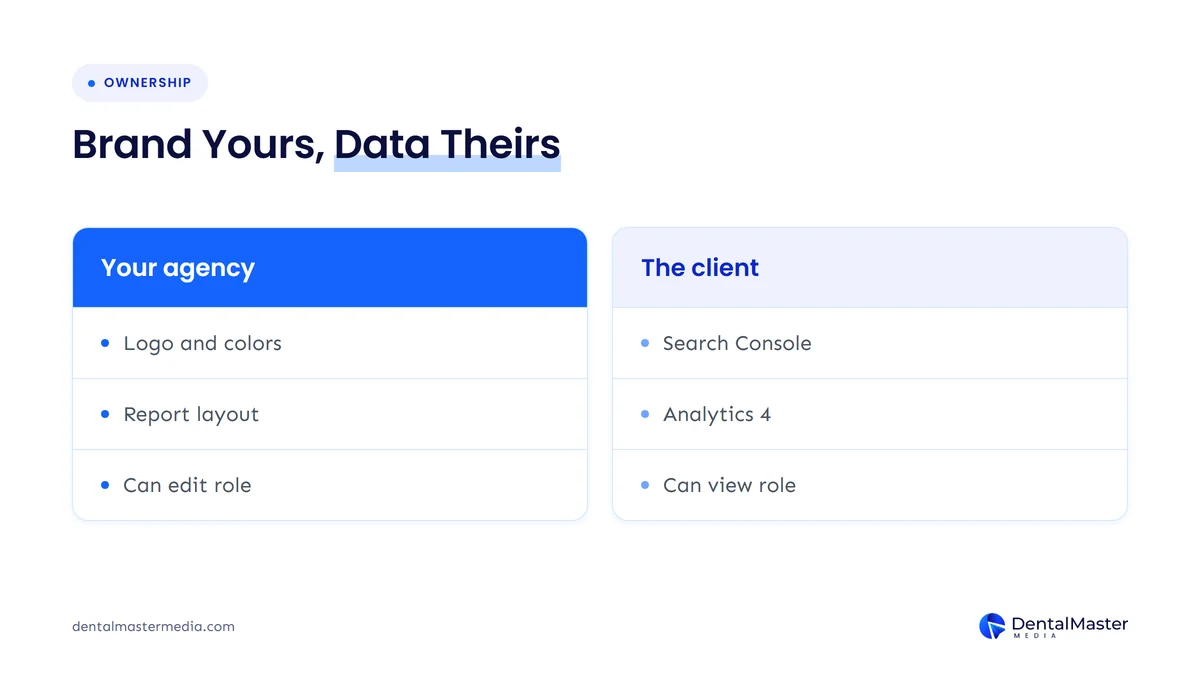
With owner’s credentials, a viewer sees the data through the data source owner’s authorization, without needing access to the dataset. With viewer’s credentials, each person needs their own access to the dataset, so a client without a Google Search Console role sees nothing. Anyone who can open a report built on owner’s credentials sees that data as if they were the owner, so share such a report only with the people who should see it.
The roles that a provider and your team need are listed below, and none of them requires ownership of the client’s accounts.
- Google Search Console: give a full user role, which can view all data and submit sitemaps. Only an owner can add users under Settings, Users and permissions, and a property holds up to 100 non-owner users.
- Google Analytics 4: give the Viewer role, or Analyst if the person needs to share explorations. Editor and Administrator roles change settings and users.
- Looker Studio: give clients Can view and keep Can edit for your own team.
Keep personal data out of the report. Google’s Analytics Help page on personally identifiable information states that no data should be passed to Google that Google could use or recognize as personally identifiable, so keep patient names and contact details out of your Analytics data and out of the report. Check the terms of every tool that feeds the report, because each tool sets its own rules on branded and shared reports.
What should white label SEO reports include?
White label SEO reports should include rankings, organic traffic, the work completed and the next month’s priorities, with each number traceable to Google Search Console or Google Analytics 4. A report that only shows a ranking chart gives the client no reason to keep paying.
Dental Master Media’s monthly report for agency partners carries your logo and covers the items listed below.
- Rankings and organic traffic: the positions and visits that Google Search Console and Google Analytics 4 record.
- Google Business Profile results: views, calls and direction requests.
- Booking link clicks: the clicks on the practice’s online booking link.
- Form enquiries: the number of contact and appointment form submissions, without names or contact details.
- Work completed and next priorities: the tasks finished this month and the plan for the next.
Our guide to the monthly dental SEO report explains each of these items for the practice owner, and our dental SEO reporting page shows how the report is laid out.
How do you check a provider’s white label SEO reports before you resell them?
You check a provider’s white label SEO reports by reading a sample with the client name removed, comparing its numbers with Google Search Console and testing the branding on 1 or 2 clients before you move the rest. The 5 checks below take about an hour per report.
- Ask for a real sample report with the client name removed, not a template with made-up numbers.
- Compare 5 numbers in the sample with the same date range in Google Search Console and Google Analytics 4.
- Confirm that your logo, colors and agency name appear on every page and that the provider’s name appears on none.
- Open the report as a Can view user to see exactly what the client will see.
- Send the first scheduled PDF to your own address before it goes to the client.
Vetting a provider covers more than the report, and our list of 25 questions to ask a white label SEO provider covers proof, methods, delivery and pricing as well.
Frequently asked questions
Can I put my logo on white label SEO reports?
Yes, you can put your logo on white label SEO reports built in Looker Studio. Add the logo as an image in PNG, JPG or SVG format, place it on each page and set your brand colors in a custom theme. A provider’s report should also carry your logo and not the provider’s name.
Does a client need a Google account to view a Looker Studio report?
No, a client does not need a Google Account to view a report that has link sharing turned on. Direct invitations do require a Google Account. If your organization’s administrator blocks external sharing, the public link option may not appear, and a scheduled email PDF is the alternative.
Can Looker Studio email white label SEO reports automatically?
Yes, Looker Studio can email a PDF of the report on a schedule to up to 50 addresses. Without Looker Studio Pro, a report has 1 schedule and the highest frequency is once a day. A monthly schedule fits a monthly report.
Should the client own the Google accounts behind the report?
Yes, the client should own the Google Search Console, Google Analytics 4 and Google Business Profile accounts, and your agency and provider should hold roles such as Search Console full user or Analytics Viewer. If the agency relationship ends, the client keeps its data and its history.
Can a white label provider build the reports for my agency?
Yes, a white label provider can build the monthly report under your brand. Dental Master Media’s monthly report for agency partners carries your logo. Read each report before it goes to your client.
See white label SEO pricing for how reporting fits into the margin.
Brand the report, keep the data with the client
White label SEO reports carry your agency’s brand while the numbers come from the client’s own Google accounts. In Looker Studio you set your brand colors and fonts in a custom theme, add your logo as an image, share by invitation, link sharing or a scheduled email PDF, and give clients Can view. Check every number against Google Search Console before the report goes out.
At Dental Master Media, our white label dental SEO services include a monthly report that carries your logo, and our dental SEO services page shows the work behind each number.
See a white label SEO report built for your agency
On a free strategy call we walk through our process, the NDA and the monthly report that carries your logo, and you can decide whether our white label dental SEO program fits your clients.
Sources
- Google Cloud, “Looker Studio: Themes”, accessed November 23, 2026. https://docs.cloud.google.com/looker/docs/studio/themes
- Google Cloud, “Looker Studio: Add text, images, lines, and shapes to your reports”, accessed November 23, 2026. https://cloud.google.com/looker/docs/studio/add-text-images-lines-and-shapes-to-your-reports
- Google Cloud, “Looker Studio: Ways to share your reports”, accessed November 23, 2026. https://docs.cloud.google.com/looker/docs/studio/ways-to-share-your-reports
- Google Cloud, “Looker Studio: Invite others to your reports”, accessed November 23, 2026. https://docs.cloud.google.com/looker/docs/studio/invite-others-to-your-reports
- Google Cloud, “Looker Studio: Schedule automatic report delivery”, accessed November 23, 2026. https://docs.cloud.google.com/looker/docs/studio/schedule-automatic-report-delivery
- Google Cloud, “Looker Studio: Data credentials”, accessed November 23, 2026. https://docs.cloud.google.com/looker/docs/studio/data-credentials-article
- Google Search Console Help, “Manage users, owners, and permissions”, accessed November 23, 2026. https://support.google.com/webmasters/answer/2451999
- Analytics Help, “Roles and permissions”, accessed November 23, 2026. https://support.google.com/analytics/answer/9305587
- Analytics Help, “Best practices to avoid sending Personally Identifiable Information (PII)”, accessed November 23, 2026. https://support.google.com/analytics/answer/6366371
- Sitechecker, “The 2026 SEO agency growth report”, March 11, 2026. https://sitechecker.pro/seo-agency-growth-data-study-2026/

Suraj Rana is the owner of Dental Master Media and a leading expert in SEO for dental practices. With a passion for dental marketing, he has successfully helped numerous dental clinics climb the search engine ranks. Suraj’s expertise makes him a go-to resource for effective, results-driven dental marketing.