
Quick answer: A dental website homepage should tell a patient in seconds who you are, what you treat and where you are, then make booking easy. That means a clear headline, a tap-to-call phone number and booking button, your address and hours, core treatments, real team photos, genuine reviews, new patient and payment details, and a fast, accessible mobile page.
Key takeaways
- Your homepage has one job: move a new patient from “is this the right dentist?” to a call or a booking request as quickly as possible.
- The phone number and booking button should be visible on a phone screen without scrolling, and repeated further down the page.
- Your practice name, address and phone number should match your Google Business Profile exactly.
- Some Google features read your homepage specifically: your site name and favicon in search results both come from it.
- Google says there are no special optimizations needed for AI Overviews or AI Mode. Clear text, accurate structured data and a good page experience do the work.
- Measure the homepage by calls and booking requests, not by how it looks.
What is a dental website homepage, and what is its job?
A dental website homepage is the main page at your domain’s root address, the page most people see when they type your practice name or tap your website link in Google Maps. Its job is not to explain everything. It is to confirm patients are in the right place and point them to the next step.
Most visitors arrive with one of a few questions in mind:
- Is this practice near me and open when I need it?
- Do they offer the treatment I need?
- Can I afford it, and do they take my insurance or offer payment options?
- Can I trust these people?
- How do I book?
Every element on the homepage should answer one of those questions. Anything that doesn’t, such as a long history of the practice or a rotating slider of stock images, competes for attention with the booking button.
Which homepage elements turn visitors into booked appointments?
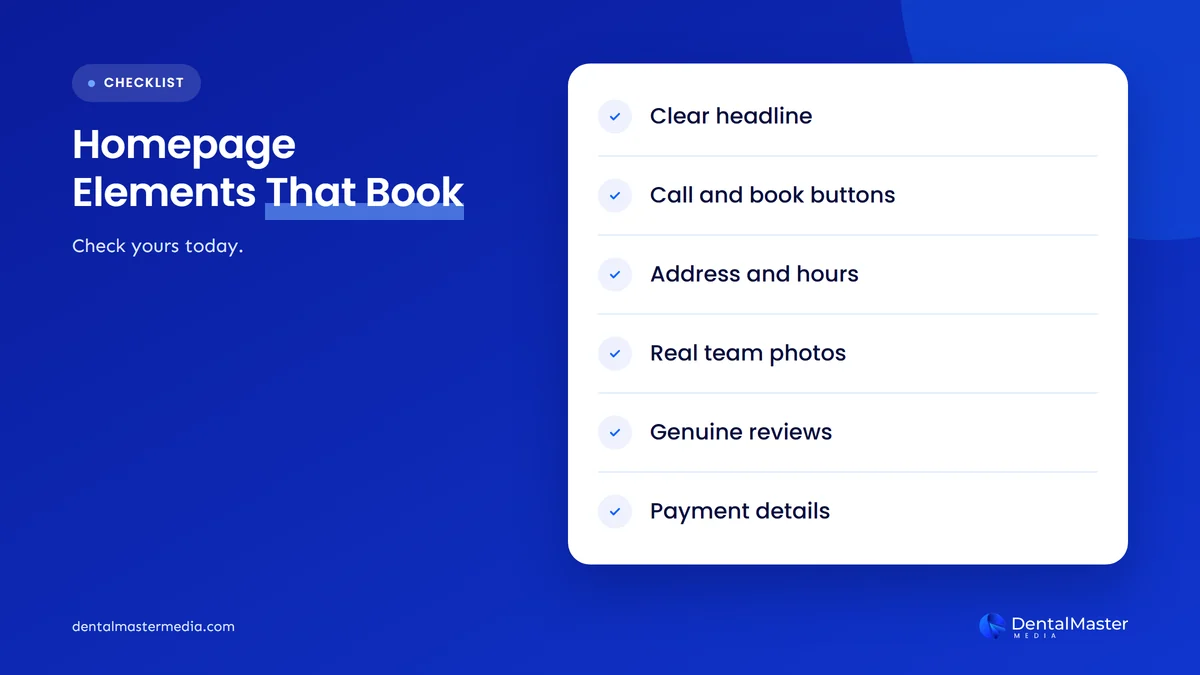
The homepage elements that lead to bookings are the ones that remove doubt and make the next step obvious: a plain headline with your location, a visible phone number and booking button, address and hours, the treatments you offer, real people, honest reviews, new patient and payment details, and a page that loads quickly on a phone.
1. A headline that says what, who and where
The first words on the page should name what you do and where you do it, for example “Family and implant dentistry” followed by the name of your town. Patients scan rather than read, so a headline that only says “Welcome to our practice” wastes the most valuable space on the page. Add a short supporting line about who you serve, such as families, nervous patients or people needing emergency care.
2. A tap-to-call number and one clear booking button
Put your phone number in the header as a tap-to-call link and add one main button, such as “Book an appointment”. Use the same wording every time it appears. If you offer online booking, the button should open it directly. If you don’t, it should go to a short request form, not a general contact page with five options.
Repeat the call and booking options after each main section, so nobody has to scroll back to the top. On phones, a sticky bar with “Call” and “Book” buttons works well, as long as it doesn’t cover content.
3. Address, hours and a map
Show your full address, opening hours and a map or directions link on the homepage, usually near the top and again in the footer. Mention parking or public transport if it helps. Keep your practice name, address and phone number identical to your Google Business Profile, because mismatched details confuse patients and make your listing harder to trust.
4. Your core treatments, linked to their own pages
List the treatments you most want to grow, such as implants, clear aligners, emergency dentistry and general checkups, with one line each and a link to the full treatment page. The homepage introduces the treatment. The treatment page answers the detailed questions. That split keeps the homepage short and gives Google a clear page to show for each treatment search.
5. Real photos of your team and practice
Use real photos of your dentists, staff, reception and treatment rooms. Name the dentists and state their qualifications. Patients choosing a new dentist want to see the people who will treat them, and stock photos of smiling models do nothing to build that trust. Our guide to the trust signals every dental website needs covers this in more detail.
6. Genuine reviews, shown honestly
Show a few recent patient reviews and link to your Google reviews so visitors can read them in full. Use reviews as they were written, with permission where your local rules require it. One technical note: Google does not show review stars in search results for a business’s reviews of itself, even through an embedded widget, so don’t add self-review markup expecting stars.
7. New patient, payment and insurance details
Cost worries stop many people from booking. Say clearly whether you are accepting new patients, which insurance plans or payment options you accept, and whether you offer a membership plan or financing. If the list is long, give a short summary and link to a full page. Only list plans and offers you actually provide today.
8. Emergency and anxiety information
If you see emergency patients, say so near the top with the number to call. If you offer sedation or care for nervous patients, mention it on the homepage. Both are common reasons patients choose one practice over another, and both are easy to miss if they are buried in a service menu.
9. Accessibility built in, not bolted on
Your homepage should work for patients who use screen readers, keyboards or magnification. The US Department of Justice says businesses open to the public must make their goods and services accessible, and that this applies to the web. Its guidance lists common barriers such as poor color contrast, missing alt text, no captions and forms without labels.
The Web Content Accessibility Guidelines (WCAG 2.2) are the usual technical benchmark. On a dental homepage, check these first:
- Text has enough contrast against its background, including text placed over photos.
- Every meaningful image has alt text, and decorative images don’t.
- The booking form has visible labels and clear error messages.
- Buttons and links are big enough to tap. WCAG 2.2 sets a minimum target size of 24 by 24 CSS pixels at level AA.
- Any video has captions, and nothing plays sound automatically.
10. A fast, mobile-first page
Google uses the mobile version of a site for indexing and ranking, and many patients will see your homepage on a phone first. Large hero videos, sliders and heavy chat scripts slow the page down. Check your homepage in PageSpeed Insights and aim for Google’s “good” Core Web Vitals thresholds, shown in the table below.
| Core Web Vital | What it measures | Google’s “good” threshold | Common homepage cause of a poor score |
|---|---|---|---|
| Largest Contentful Paint (LCP) | How quickly the main content appears | 2.5 seconds or less | Oversized hero image or background video |
| Interaction to Next Paint (INP) | How quickly the page responds to taps and clicks | Under 200 milliseconds | Too many third-party scripts, such as chat and tracking tags |
| Cumulative Layout Shift (CLS) | How much the layout jumps while loading | Below 0.1 | Banners, pop-ups or images without set dimensions |
Source: Google Search Central, “Understanding Core Web Vitals and Google search results”. For more on why speed affects bookings, read our guide to dental website speed.
What should be above the fold on a dental homepage?
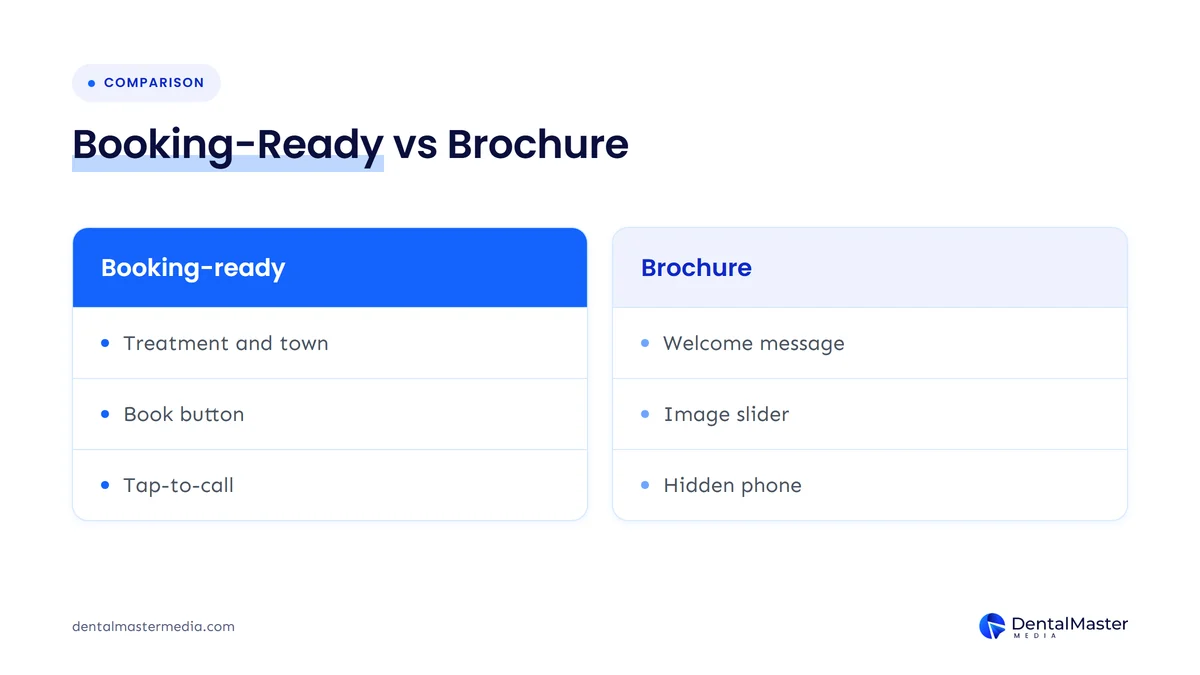
Above the fold means what a patient sees before scrolling. On a phone, that space is small, so it should hold only the essentials: your headline with treatment and location, a booking button, a tap-to-call number and one trust cue, such as a real team photo or your Google rating. Everything else can sit lower down.
| Homepage element | Where it belongs | Why |
|---|---|---|
| Headline with treatment and location | Above the fold | Confirms the patient is in the right place |
| Book button and tap-to-call number | Above the fold, then repeated | The action you want, always within reach |
| One trust cue (team photo or rating) | Above the fold | Gives a reason to stay |
| Core treatments | Directly below | Patients check you offer what they need |
| Reviews and team introductions | Middle of the page | Builds trust before the decision |
| Insurance, payment and new patient details | Middle of the page | Removes cost worries |
| Address, hours, map and parking | Near the top and in the footer | Answers “can I get there?” |
| Practice history and philosophy | About page, with a short line on the homepage | Useful, but rarely the reason someone books |
What does a dental homepage need for Google search and AI answers?
For search, your homepage needs crawlable text that names your practice, treatments and location, accurate structured data that matches what is on the page, and a good page experience. Google says there are no extra requirements to appear in AI Overviews or AI Mode, so the same foundations serve normal results and AI answers.
Google’s guidance on AI features lists the basics: allow crawling, link to your important pages, provide a good page experience, keep important content in text, support it with good images, make sure structured data matches the visible text, and keep your Business Profile up to date. For a dental homepage, that turns into a short technical list:
- Dentist structured data. Schema.org has a
Dentisttype, a subtype ofLocalBusinessandMedicalBusiness. Google asks for the most specific subtype you can use, with name and address required and telephone, URL, opening hours and geo coordinates recommended. - Site name markup on the homepage. Google takes the site name shown in search results from
WebSitestructured data, and it must be on the homepage, not on an inner page. - A favicon linked from the homepage. Google reads the favicon for search results from a link tag on your homepage. It should be square, and Google recommends larger than 48 by 48 pixels. Google updated this documentation in August 2026 to list the supported file formats.
- Real text, not text inside images. Your treatments, location and hours should be in HTML text that Google and AI systems can read.
- Internal links from the homepage to every main treatment page and location page.
If you want the full markup walkthrough, read our guide to schema markup for dental websites.
What are the most common dental homepage mistakes?
The most common dental homepage mistakes are hiding the phone number, opening with a vague welcome message, relying on sliders and stock photos, burying insurance and new patient details, letting pop-ups cover the booking button and loading so slowly on phones that patients leave before the page appears.
- Sliders and carousels. They slow the page and push your main message out of view every few seconds. One strong image and headline usually works better.
- Autoplay video with sound. It annoys visitors, slows the page and creates an accessibility problem.
- Pop-ups and chat bubbles over the button. On a phone, these often cover the very thing you want patients to tap.
- Too many choices. Five different buttons (“Contact”, “Enquire”, “Request”, “Call”, “Book”) split attention. Pick one main action.
- PDF forms. New patient forms as PDFs are hard to complete on a phone and hard for screen readers.
- Outdated details. Old hours, staff who have left or offers that ended damage trust quickly.
If your homepage gets visits but the phone stays quiet, our article on why a dental website gets traffic but no phone calls walks through the usual causes.
How do you test whether your dental homepage converts?
Test your homepage the way a new patient would use it: look at it for five seconds on a phone and see what you remember, try to book from start to finish, then check how many calls and booking requests it produced last month. Fix the biggest gap first and measure again.
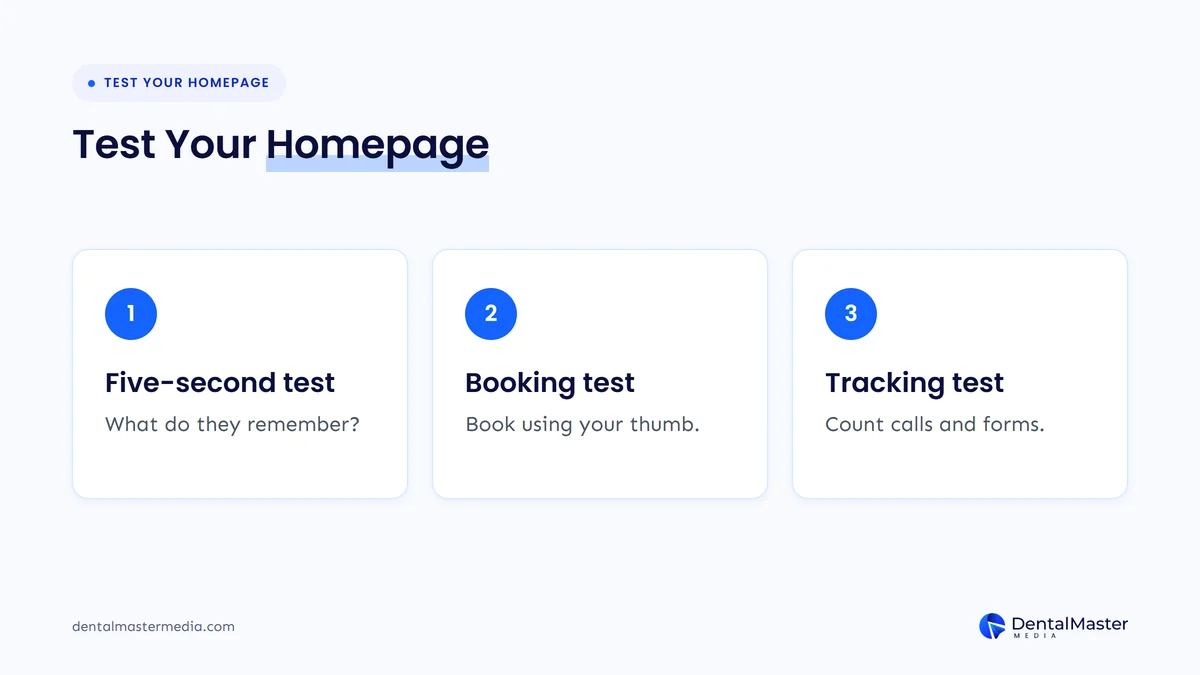
- The five-second test. Show the homepage on a phone to someone who doesn’t know the practice. After five seconds, ask what you do, where you are and how to book. If they can’t say, the top of the page needs work.
- The booking test. Try to book an appointment and call the practice from the homepage using only your thumb. Count the taps and note anything that slows you down.
- The tracking test. Set up phone clicks, booking button clicks and form submissions as key events in Google Analytics 4. Google defines a key event as an action that matters most to your business. Without them, you can’t tell whether a change helped.
- Change one thing at a time. Move the button, rewrite the headline or remove the slider, then compare a few weeks of key events before and after.
Does fixing the homepage mean redesigning the whole website?
Not usually. Many homepage problems, such as a vague headline, a hidden phone number or missing insurance details, can be fixed on your current site in a few days. A full redesign makes sense when the platform can’t be edited, the site fails on phones or problems run through every page, not only the homepage.
If you are unsure which applies, our checklist of signs your dental website needs a redesign will help you decide. If you do redesign, protect your rankings by keeping URLs or redirecting them properly.
Frequently asked questions
How long should a dental website homepage be?
Long enough to answer the main questions patients have before booking, and no longer. Most dental homepages need a headline section, core treatments, a trust section, reviews, new patient and payment details, and location and hours. Detailed treatment information belongs on separate treatment pages linked from the homepage.
Should a dental homepage have online booking?
Online booking helps patients who prefer not to call or who look for a dentist outside office hours. If your practice management system supports it, link the main booking button straight to it. If not, a short appointment request form plus a tap-to-call number is a good alternative.
Should I put prices on my dental homepage?
You don’t need full prices on the homepage, but you should reduce cost worries. Say which insurance plans or payment options you accept and whether you offer financing or a membership plan. Pricing details, where your local rules allow them, fit better on treatment or fees pages.
Does my homepage need special changes for AI search?
No special changes are needed. Google says there are no additional requirements or special optimizations to appear in AI Overviews or AI Mode. Clear text about your treatments and location, accurate structured data that matches the page and an up-to-date Google Business Profile serve both normal search and AI answers.
Do dental websites have to be accessible?
In the US, the Department of Justice says businesses open to the public must make their goods and services accessible, and that this includes the web. Most practices use WCAG 2.2 as the technical standard. Accessible pages also tend to be easier for every patient to use on a phone.
The bottom line on what a dental homepage should include
A dental homepage that books appointments is clear, quick and honest. It names your treatments and location in the headline, keeps the call and booking options in reach, shows real people and real reviews, answers cost questions and loads quickly on a phone. Add accurate structured data and keep your details in line with your Google Business Profile, then judge every change by calls and booking requests. To see how we build homepages like this, look at our dental website design and development services, and our dental SEO services for the search side, at Dental Master Media.
Find out what your homepage is missing
At Dental Master Media, every project starts with an audit. Our free dental SEO audit checks your homepage, speed, structured data and Google Business Profile, then shows which gaps are most likely to be costing you calls and bookings.
Sources
- Google Search Central, “AI features and your website”, updated December 10, 2025. https://developers.google.com/search/docs/appearance/ai-features
- Google Search Central, “Local business (LocalBusiness) structured data”, accessed November 4, 2026. https://developers.google.com/search/docs/appearance/structured-data/local-business
- Schema.org, “Dentist”, accessed November 4, 2026. https://schema.org/Dentist
- Google Search Central, “Provide a site name to Google Search”, accessed November 4, 2026. https://developers.google.com/search/docs/appearance/site-names
- Google Search Central, “Define a favicon to show in search results”, updated August 28, 2026. https://developers.google.com/search/docs/appearance/favicon-in-search
- Google Search Central, “Latest Google Search documentation updates”, accessed November 4, 2026. https://developers.google.com/search/updates
- Google Search Central, “Review snippet (Review, AggregateRating) structured data”, accessed November 4, 2026. https://developers.google.com/search/docs/appearance/structured-data/review-snippet
- Google Search Central, “Understanding Core Web Vitals and Google search results”, accessed November 4, 2026. https://developers.google.com/search/docs/appearance/core-web-vitals
- Google Search Central, “Mobile site and mobile-first indexing best practices”, accessed November 4, 2026. https://developers.google.com/search/docs/crawling-indexing/mobile/mobile-sites-mobile-first-indexing
- U.S. Department of Justice, ADA.gov, “Guidance on Web Accessibility and the ADA”, March 18, 2022. https://www.ada.gov/resources/web-guidance/
- W3C, “Web Content Accessibility Guidelines (WCAG) 2.2”, W3C Recommendation, December 12, 2024. https://www.w3.org/TR/WCAG22/
- Google Analytics Help, “About key events”, accessed November 4, 2026. https://support.google.com/analytics/answer/9267568

Suraj Rana is the owner of Dental Master Media and a leading expert in SEO for dental practices. With a passion for dental marketing, he has successfully helped numerous dental clinics climb the search engine ranks. Suraj’s expertise makes him a go-to resource for effective, results-driven dental marketing.