Quick answer: Yes, a dental practice can now choose which third-party booking links show on its Google Business Profile. Google added a self-serve switch for appointment links in the Booking section, as reported on November 23, 2026. Check every partner link, test where it lands, keep the ones that fit your front desk and switch off the rest.
Key takeaways
- Third-party booking links are appointment links that partners can place on a Google Business Profile, and the owner can now switch them on or off.
- Google’s Business Profile Help page says you turn off the switch next to a provider in the Booking section, then select Confirm.
- The control hides a link. It does not delete the provider, and Help says removal goes through the provider’s own opt-out, which must be processed within 5 business days.
- A profile can hold up to 10 links per category, and one link can be marked “Business preferred” so it shows first.
- A dental practice should list every link, click each one as a patient would, then keep, switch off or replace it.
- This is a different change from the booking buttons Google adds on its own, which we covered on November 10, 2026.
What are third-party booking links on a Google Business Profile?
Third-party booking links are appointment or reservation links on a Google Business Profile that come from a booking partner, not from the business itself. Google Business Profile Help says booking, appointment or reservation links can appear automatically through partners, while a custom link is one the business adds by hand.
A dental practice meets third-party booking links when a scheduling tool or marketplace connects to its listing. The patient sees one appointment path on Google Search or Google Maps and taps it, and the booking page that opens belongs to the partner or to the practice, depending on the link. Our earlier guide explains how patients book a dental practice directly from Google and how to set the links up, so this post stays on the new control.
What did Google change about booking links?
Google added a self-serve control that lets businesses choose which booking links appear on their Google Business Profile. Barry Schwartz reported it on Search Engine Roundtable on November 23, 2026, and said it covers appointment bookings and dining reservations, matching the restaurant ordering control Google added about a month earlier.
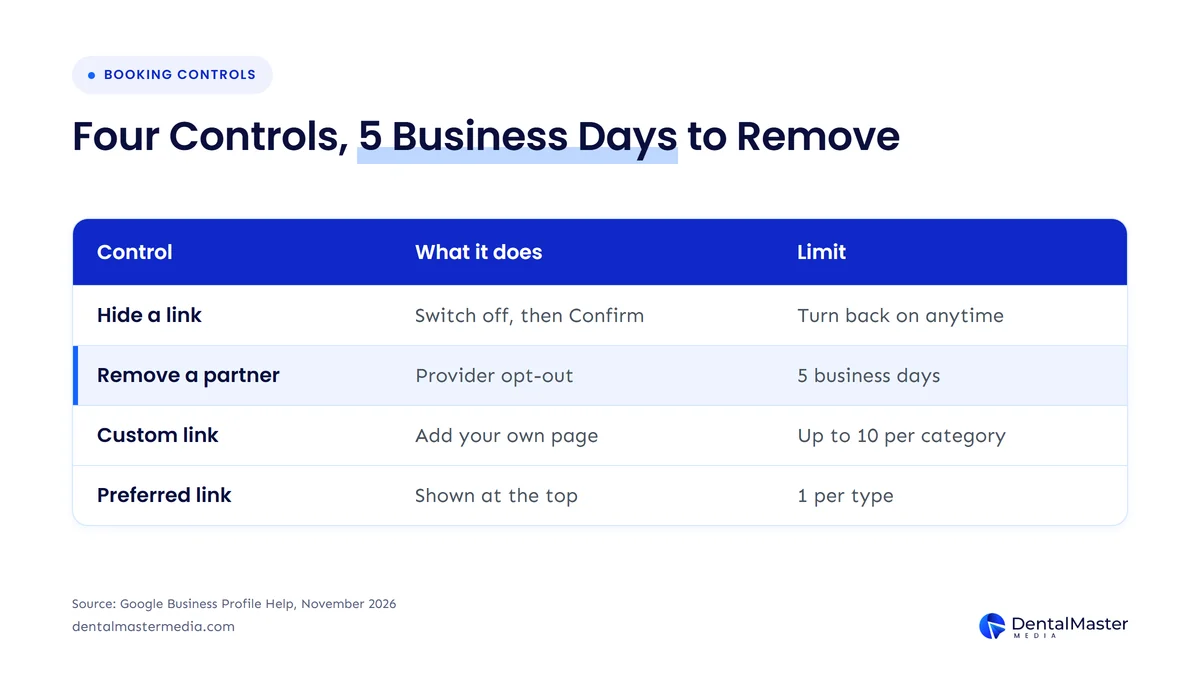
The Google-side announcement is a LinkedIn post by Lisa Landsman of Google. According to Search Engine Roundtable, she wrote that owners now decide which booking buttons appear on the listing from the dashboard, and that the change follows the food delivery control. The page we could read showed no exact post date, so the November 23 date comes from Search Engine Roundtable. The rules behind the control are on the official Business Profile Help page, summarized in the table below.
| Control | What it does | Limit or timing | Source |
|---|---|---|---|
| Hide a partner link | Turn off the switch next to the provider in the Booking section, then select Confirm | Turn it back on at any time | Business Profile Help |
| Remove a partner | Contact the provider through its opt-out link, support form or account portal | Provider must process within 5 business days | Business Profile Help |
| Add a custom link | Add your own booking page URL | Up to 10 links per category | Business Profile Help |
| Set a preferred link | Mark one link “Business preferred” so it sits at the top | 1 preferred link per transaction type | Business Profile Help |
The table shows that hiding is instant and under your control, while removing a partner depends on the provider and takes up to 5 business days. Local business links are also not available through the Business Profile API or spreadsheet upload, so these changes are made by hand in the profile.
Who is affected by the booking link controls?
The booking link controls affect any business whose Google Business Profile shows appointment or reservation links, and Search Engine Roundtable lists salons, clinics, fitness studios, local service businesses and restaurants. A dental practice is affected if a partner link appears on its profile or if it adds its own custom link.
The groups below are the ones that should look at the Booking section first. The list is based on what Google’s Help pages describe, not on any count of dental profiles.
- Practices with partner booking links: a scheduling tool or marketplace may already show a link that you never reviewed.
- Practices with their own booking page: a custom link competes with partner links unless it is set as the preferred link.
- Practices that changed software or fees: a partner link that no longer fits your fees, staffing or front desk workflow can now be switched off by you.
- Practices without online booking: a partner link that promises appointments you cannot take sends new patients to a dead end.
How do you switch off a third-party booking link?
You switch off a third-party booking link by opening the Booking section of your Google Business Profile, turning off the switch next to the provider and selecting Confirm. Google’s Business Profile Help page describes these 3 actions, and turning the switch back on shows the link again.
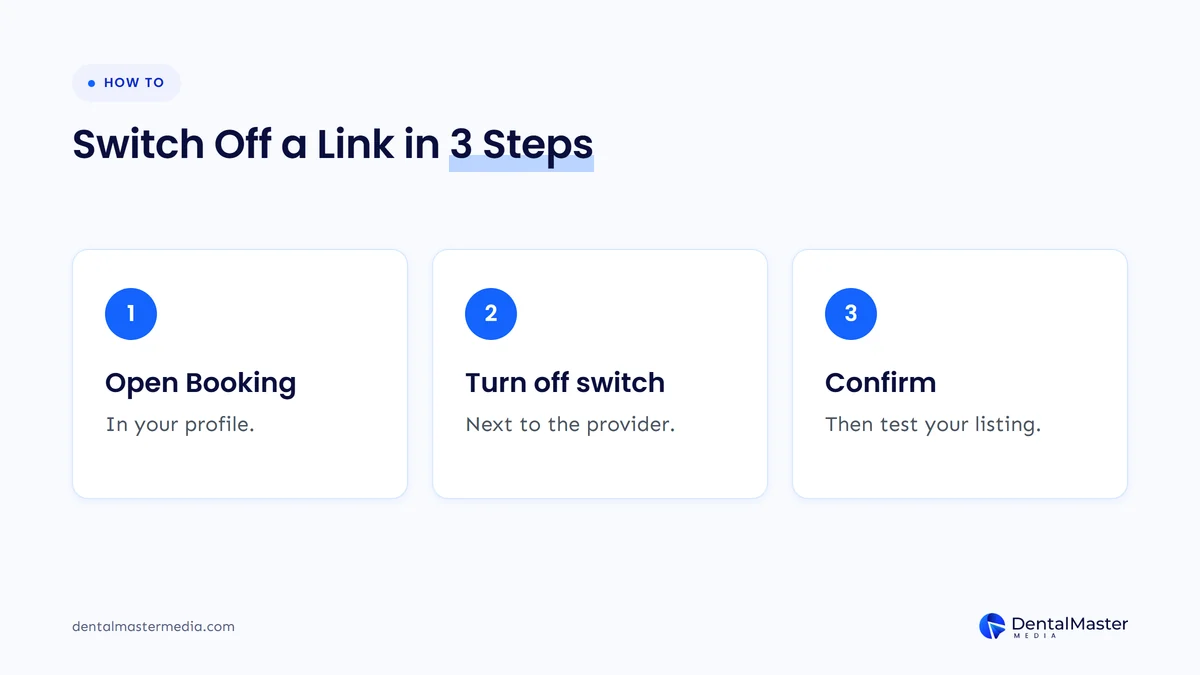
The 3 steps for switching off a partner link in your Google Business Profile are listed below.
- Open your Business Profile and go to the Booking section. In Google Maps the Help page says to select Edit profile, then Booking.
- Find the provider and turn off the switch next to it.
- Select Confirm, then search for your practice and check that the link is gone.
The Help pages use “Booking” in one article and “Bookings” in another, so look for whichever label your profile shows. We have not seen every profile, so follow the label on your own screen.
Does switching off a booking link remove the provider?
No, switching off a booking link hides it but does not remove the provider from your profile. Google’s Help page says you cannot delete third-party providers from your profile settings and must contact the provider through its opt-out link, support form or account portal.
Providers are required to process opt-out requests within 5 business days. If the link is still there after 5 business days, Help says to report a third-party violation through Google’s contact form. A second Help page adds that turning a provider off stops new bookings while existing bookings and reminders stay active, so tell your front desk before you switch a link off.
What should a dental practice check on its profile?
A dental practice should check 5 things on its Google Business Profile: which booking links show, where each one lands, which partner each link belongs to, which link is preferred and whether the front desk can handle the bookings. The checklist below turns these into steps for this week.
The 6 checks a dental practice should run on its booking links are listed below.
- List every link in the Booking section, with its provider name and the date you checked it.
- Tap each link on a phone, as a new patient would, and note the booking page it opens.
- Confirm that each partner shows availability your front desk can honor and that you still have an active account with it.
- Add your own booking page as a custom link if you have one, and mark it “Business preferred” so it shows at the top.
- Switch off any partner link that does not fit your fees, staffing or front desk workflow, and contact the provider if you want it removed.
- Recheck the Booking section before the holidays and then every month, because partner links can change.
Search Engine Roundtable also advised owners to check the Booking section before the holidays so every link leads to accurate availability. Tracking which link a patient used is a separate job, and our guide on how to track calls and bookings from your dental website covers it.
Should a dental practice switch off a booking partner?
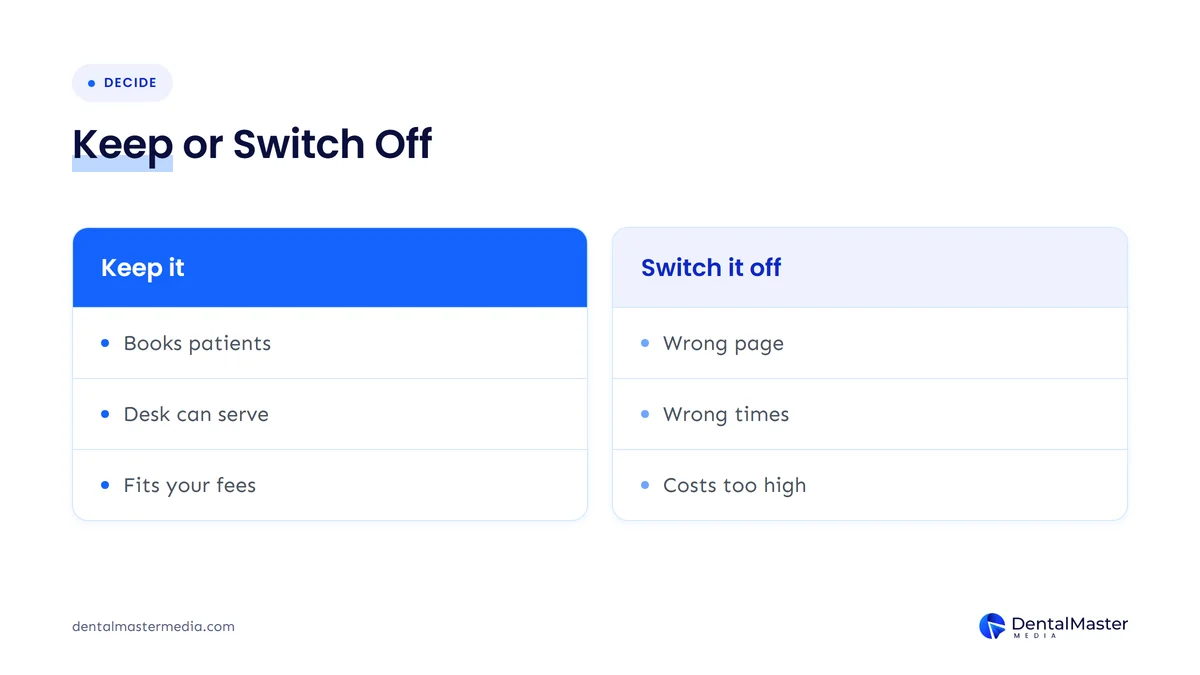
Yes, switch off a booking partner if its link sends new patients to a page you do not control, shows availability you cannot honor or costs more than it brings in. Keep a partner if it books new patients your front desk can serve.
Search Engine Roundtable gives both sides: owners can drop a partner that no longer fits their fees, staffing or workflow, and keeping several trusted partners can still reach customers who have saved details on those apps. Because you can switch a link back on at any time, a short test is low risk.
How is this different from the booking links Google adds on its own?
This change is the owner’s control, while the earlier change was Google adding a “Book Online” button without a setup step. Some of those buttons opened an error page, and that earlier change is covered separately.
We covered it on November 10, 2026 in our post on booking links Google adds to Business Profiles on its own. The new switch gives you a way to act on that problem for partner links, but a custom link and a preferred link still need a working booking page. If your own page is slow or hard to use on a phone, a switched-off partner will not fix it, which is why booking page speed and layout belong in the same review as the profile.
Frequently asked questions
Can I turn off a booking link on my Google Business Profile?
Yes, you can turn off a third-party booking link on your Google Business Profile. Open the Booking section, turn off the switch next to the provider and select Confirm. Search Engine Roundtable reported the self-serve control for appointments on November 23, 2026.
Can I delete a booking partner from my profile?
No, you cannot delete a third-party provider from your profile settings. Google’s Help page says to contact the provider through its opt-out link, support form or account portal, and that providers must process the request within 5 business days.
What if the link stays after 5 business days?
If the link is still there after 5 business days, report a third-party violation through Google’s contact form. Google’s Business Profile Help page gives this step for providers that do not process an opt-out in time.
Does switching off a link cancel existing bookings?
No, switching off a provider does not cancel existing bookings. Google’s Help page on setting up bookings through a provider says new bookings stop while existing bookings and reminders stay active, so check with your provider and your front desk first.
Can I add my own booking link instead?
Yes, you can add your own custom link and mark it “Business preferred”. Google’s Help page allows up to 10 links per category and says a preferred link sits at the top of the list.
Booking link controls are a quick win, and the booking page decides the rest
Google now lets a dental practice choose which third-party booking links show on its profile, and the official steps are short: open the Booking section, review every link, set a preferred link and switch off the partners that do not fit. The control hides links but does not delete a provider, so removal still takes an opt-out and up to 5 business days.
A clean profile only helps if the booking page behind it works. That page, your service pages and your Business Profile are the core of our dental SEO services at Dental Master Media.
Want a second pair of eyes on your booking links?
Book a free dental SEO strategy call and we will look at how patients reach your booking page from Google, which links show on your profile and where new patients drop off.
Sources
- Google Business Profile Help, “Manage your local business links”, accessed November 27, 2026. https://support.google.com/business/answer/6218037
- Google Business Profile Help, “Set up bookings through a provider”, accessed November 27, 2026. https://support.google.com/business/answer/7475773
- Lisa Landsman (Google), LinkedIn post “First food delivery, now appointments and reservations”, November 2026 (the Google-side announcement; the exact date was not shown on the page we could read). https://www.linkedin.com/posts/lisa-landsman-6076312_first-food-delivery-now-appointments-and-share-7530763228839051265-XcSB/
- Search Engine Roundtable (Barry Schwartz), “New Google Business Profiles Controls For Appointments & Dinner Reservations”, November 23, 2026. https://www.seroundtable.com/google-business-profiles-appt-book-dinner-reserve-42605.html

Suraj Rana is the owner of Dental Master Media and a leading expert in SEO for dental practices. With a passion for dental marketing, he has successfully helped numerous dental clinics climb the search engine ranks. Suraj’s expertise makes him a go-to resource for effective, results-driven dental marketing.